CouchMate · Support
Your home on Apple TV.
Help with Apple Home, CouchMate Core, Home Assistant and your local network connection.

Pairing guide
Connected in just a few steps.
Connect CouchMate securely to your own CouchMate Core and Home Assistant instance. The pairing code expires automatically.
What you need
Installed and configured as a custom integration in Home Assistant.
CouchMate Core on GitHubCouchMate needs local network permission on Apple TV.
Keep the Home Assistant interface open on your phone or computer.
Step by step
How pairing works
Select an image to open the full-size view.
-
01
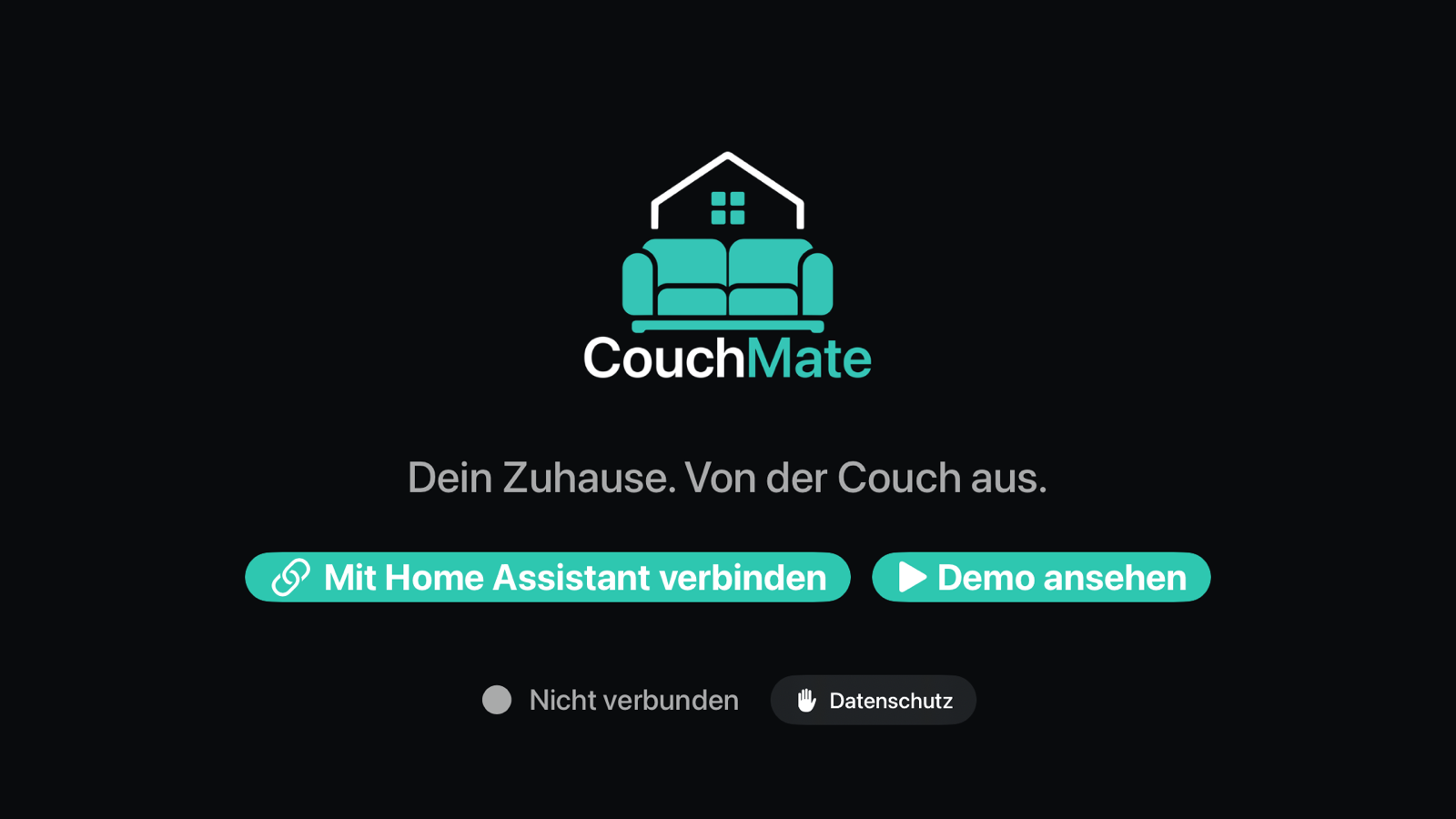
Open the connection screen
Open CouchMate on Apple TV and choose “Connect to Home Assistant”.
-
02
Select your instance
Select the discovered Home Assistant instance. Alternatively, enter its address manually, for example
homeassistant.local:8123.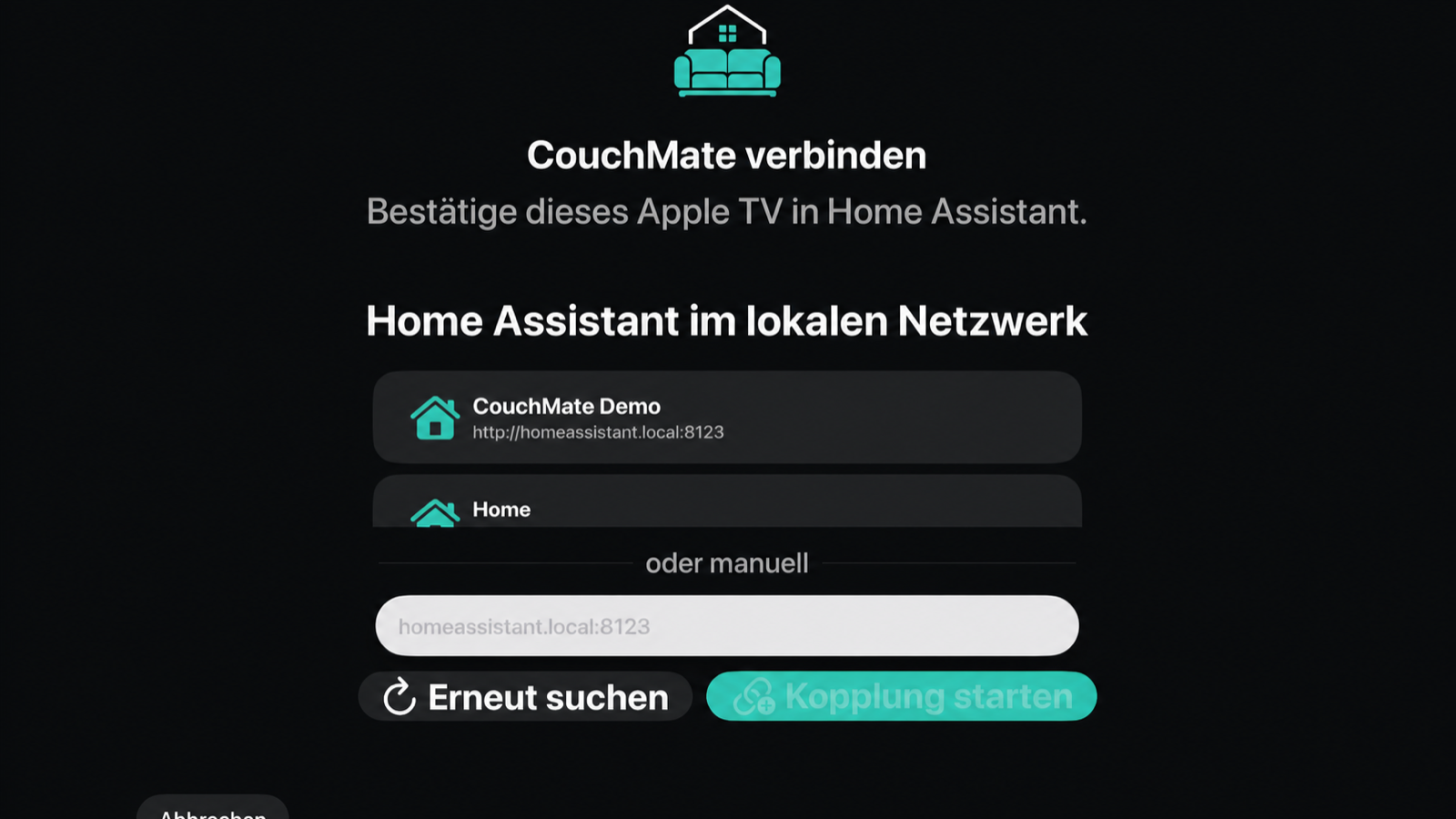
-
03
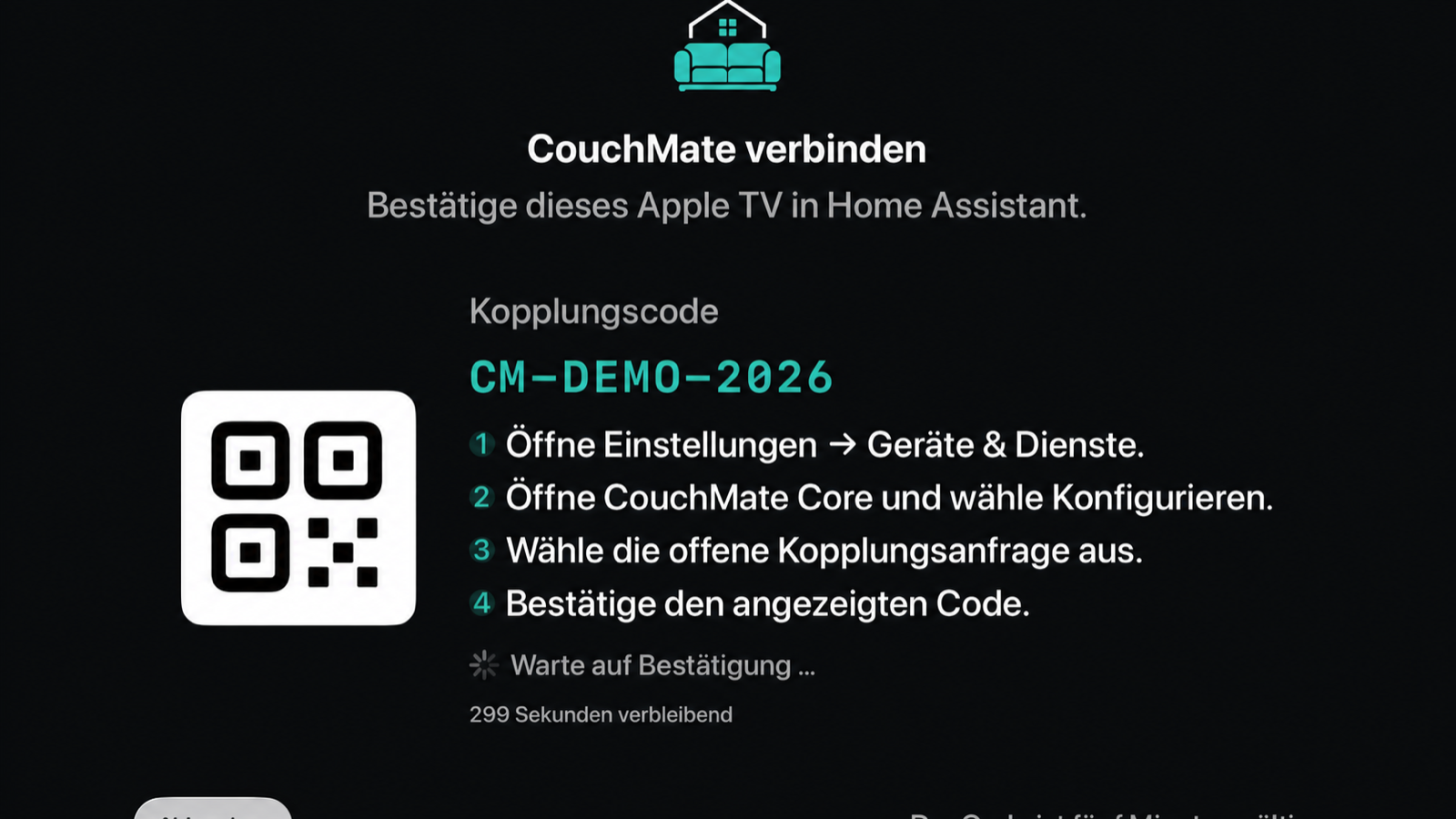
Display the code
After you start pairing, CouchMate displays a temporary code. Keep this screen open on the TV.
-
04
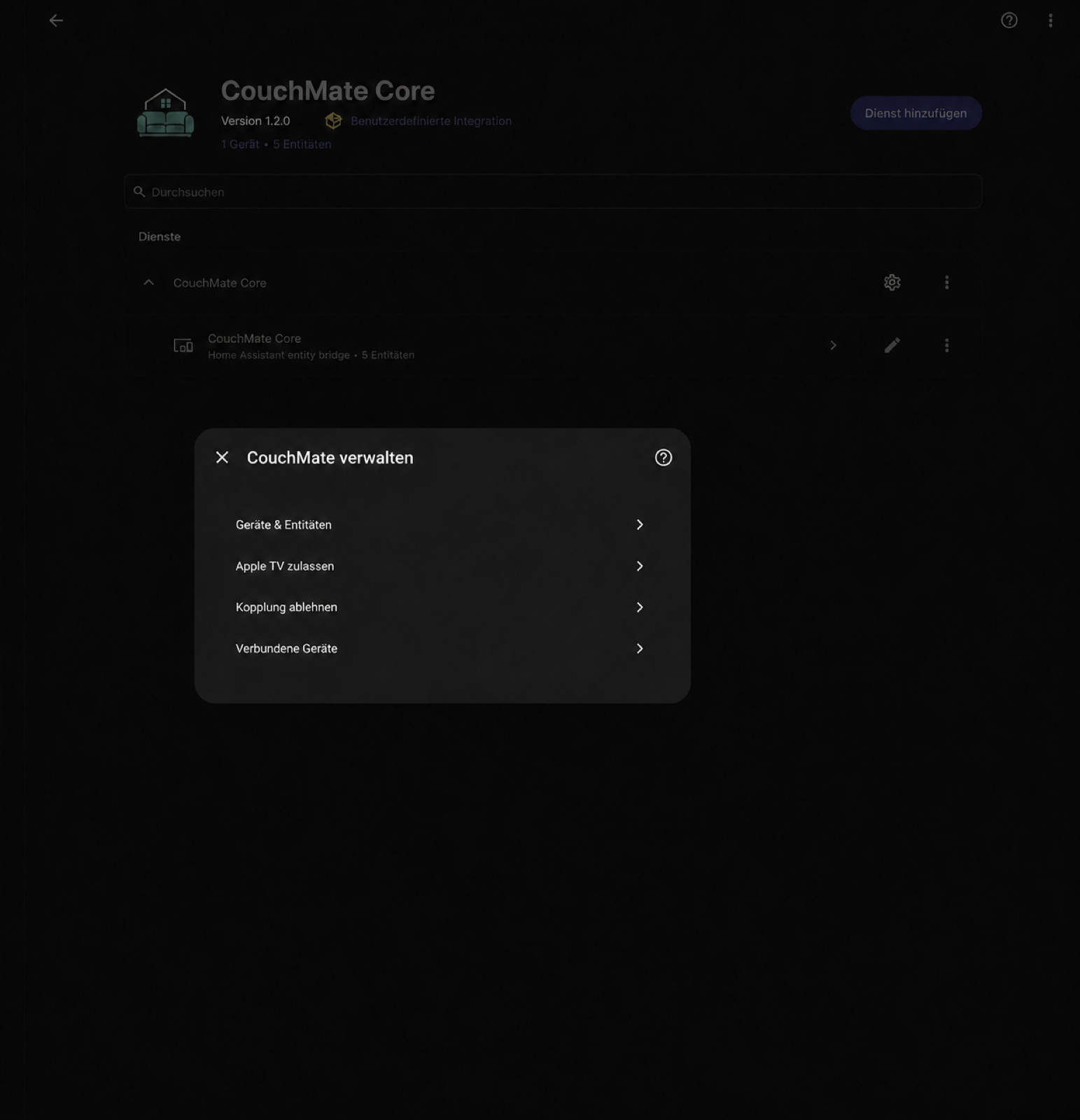
Configure CouchMate Core
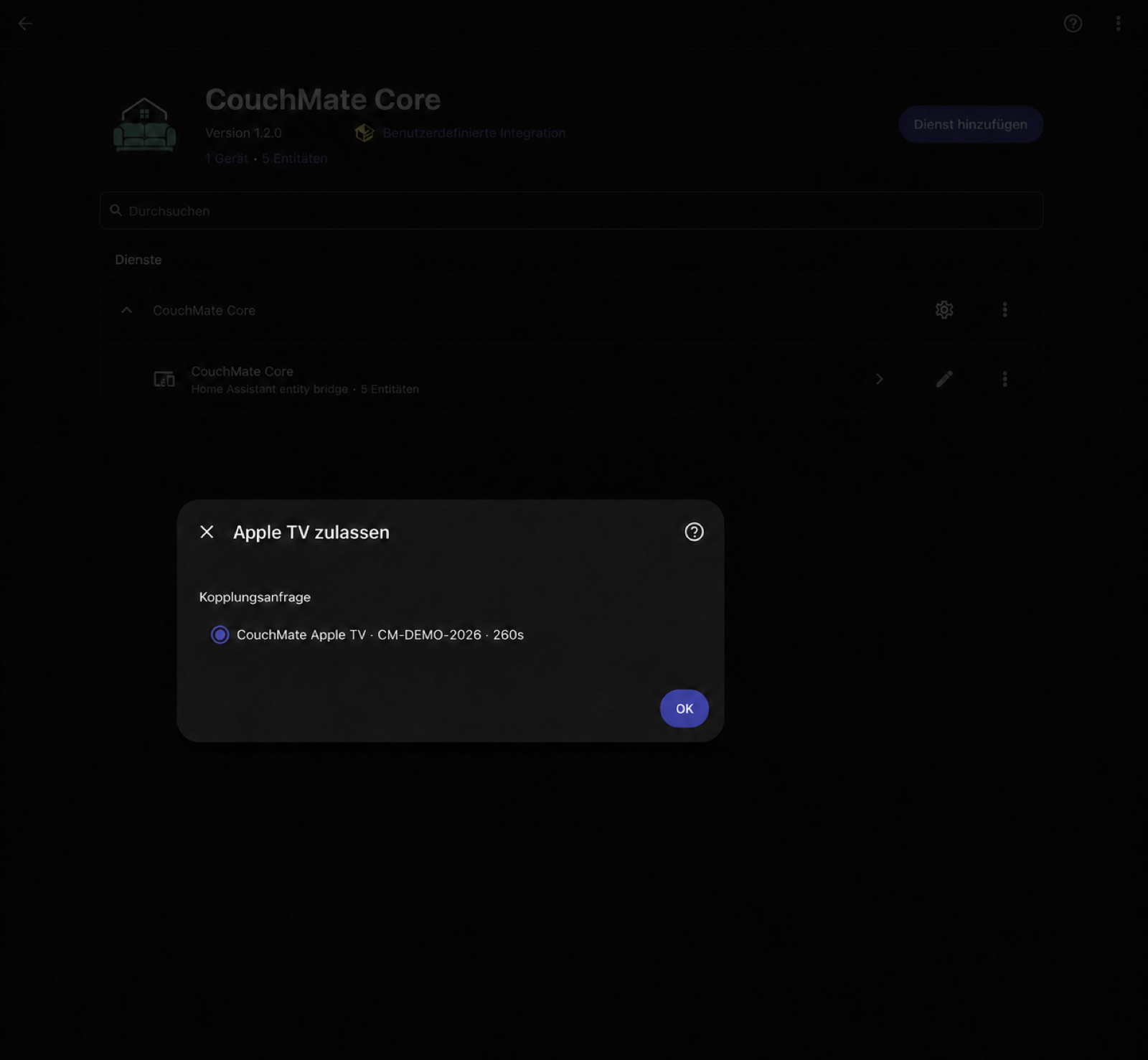
In Home Assistant, open Settings → Devices & services, select CouchMate Core and then Configure. Choose “Allow Apple TV”.
-
05
Approve the request
Select the pending request and compare its code with the one on your TV. Confirm with OK. CouchMate then connects automatically.
After pairing
Select devices and features
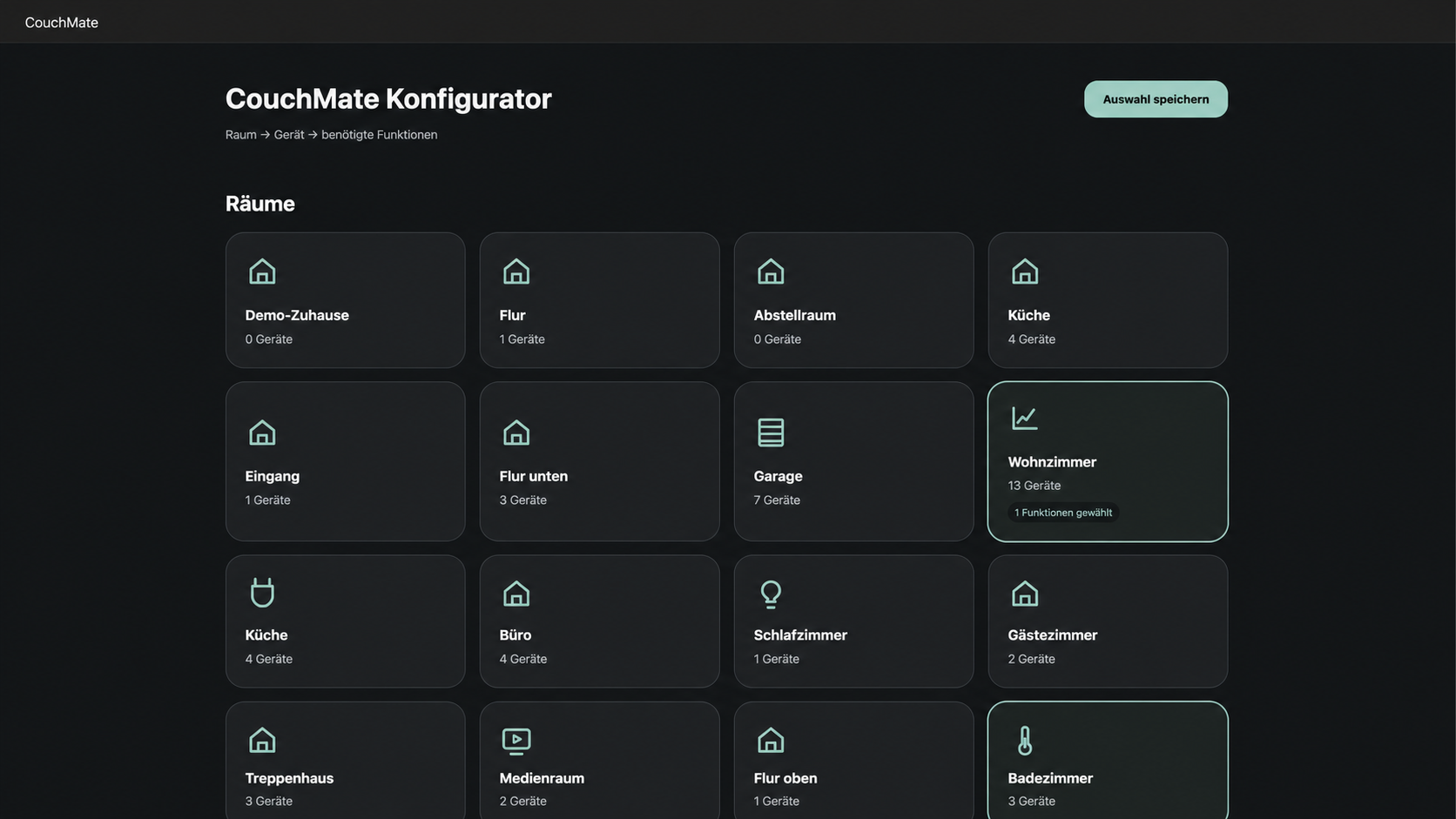
Open CouchMate in the Home Assistant sidebar. The configurator guides you through selecting a room, device and the features you need.
-
01
Select a room
Select the room whose devices you want to use with CouchMate. An indicator shows when features have already been selected in a room.
-
02
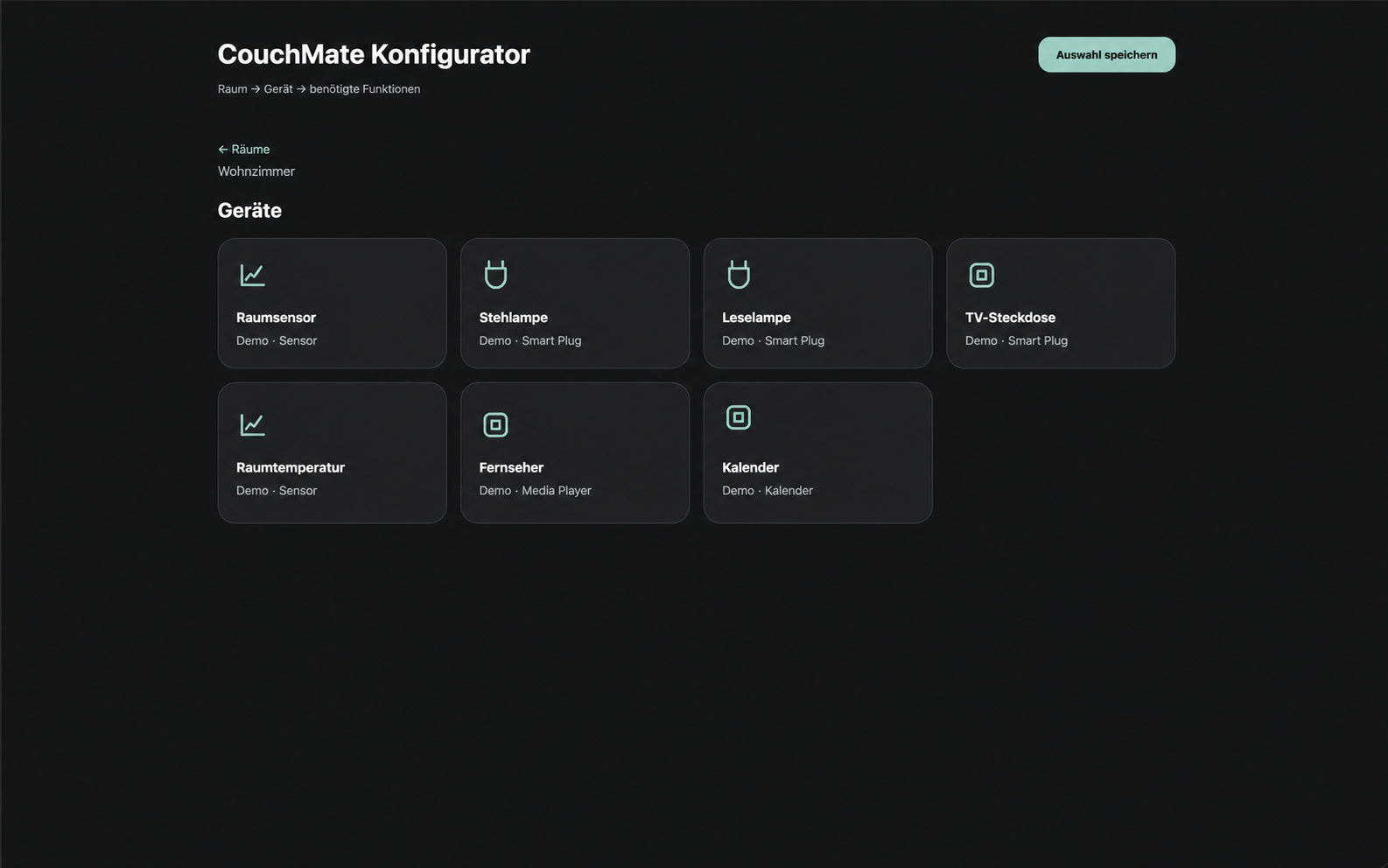
Select a device
Open the device you want. The tiles only show devices from the room you selected previously.
-
03
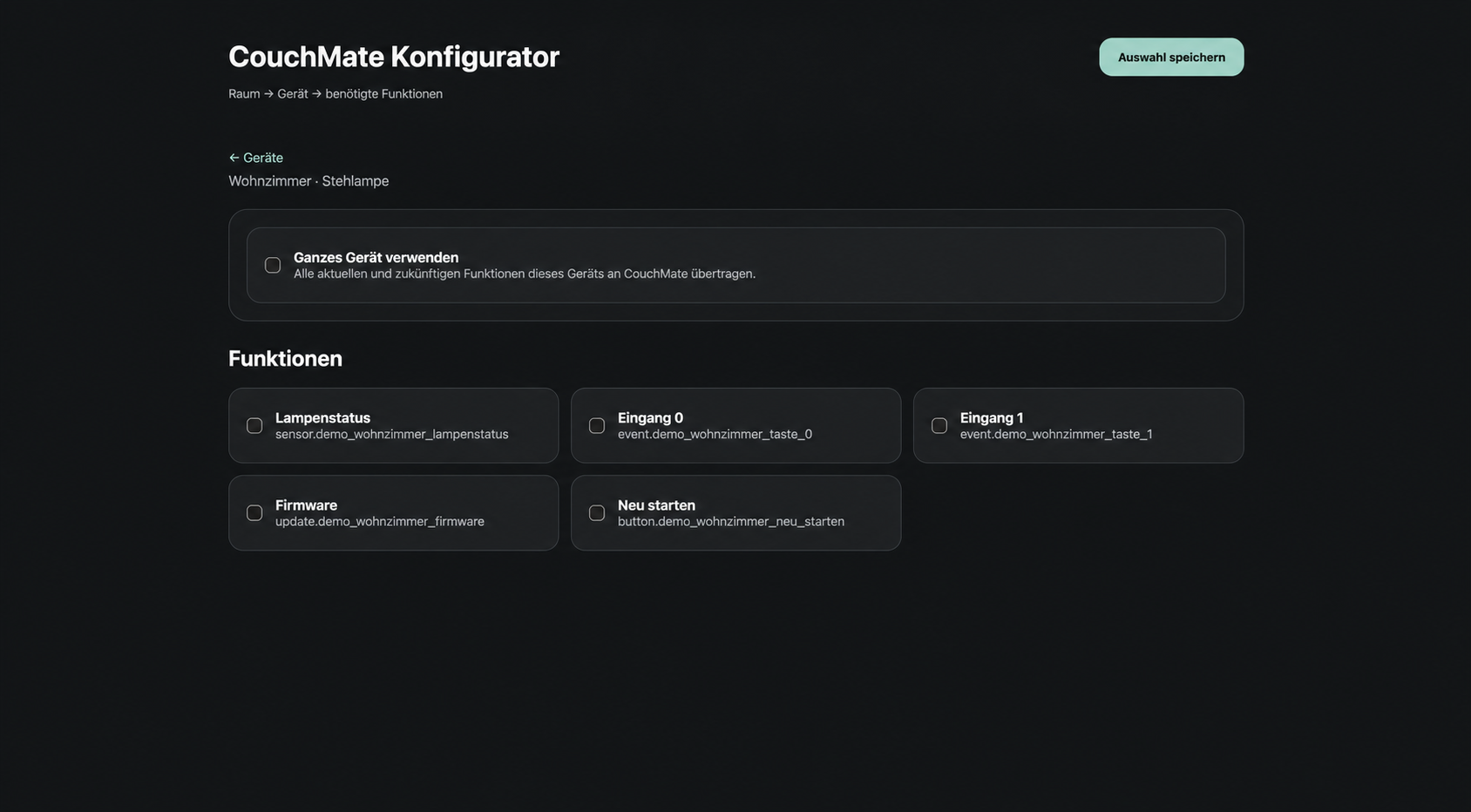
Choose features
Select only the features that CouchMate should receive. “Use entire device” includes all current and future features of this device.
Direct contact
Please include your Apple TV model, tvOS version, CouchMate and CouchMate Core versions, the affected connection method and the exact error message. Never send access tokens, pairing codes or other credentials.
support@mate.buildFrequently asked questions
CouchMate Core or Home Assistant is not found
Pairing with CouchMate Core fails
Apple Home shows no homes or devices
A camera does not show a preview
How do I delete the saved connection?
Privacy
CouchMate contains no advertising, analytics or tracking services. For more information, read the CouchMate Privacy Policy.